s

p

Google+ Cheat Sheet - shortcuts and tips


Google+ is Google's social network. I use it to connect to other educators, IT directors, EdTech personnel, tech companies and edtech groups. It's easy to use and has more features than other social networks.

Here is a great cheat sheet with shortcuts and tips for using Google+. Take a look and try some out.


Related:

Google Plus - tips for using in education, facts and data infographic

Google+ - More Reasons its great for Education

Google+ and Google+ Pages - great for educators and schools

10 Ways to Use Google Plus in the Classroom

Teaching with Google Plus - tips and resources

Twitter, Google Plus, Facebook - a nice comparison

Google Plus now open to Teens, with safety features

Infographic with Google Search Tips


Google is a very powerful search engine, but the way you search makes a huge difference in your results. The infographic below has some great tips on becoming a Google Search Power User. Check it out and share with your students.


Google Announces some great new features for Apps!


Google just announced some great new features for Google Apps that make it even more useful and powerful. Schools, like ours, that use Google Apps for Education will be very pleased with these updates and new features.

Google Apps Admins can now restore a user's Google Drive files from the past 25 days. This is great for one someone deletes a file by mistake. https://support.google.com/a/answer/6052340

Google Drive: huge changes here.

  • Document and image viewing is improved
  • there are now dedicated desktop home pages for Docs, Sheets and Slides for easier access
  • you can now edit (and save as) Word, Excel and PowerPoint files in Docs, Sheets and Slides on both Chrome and Chrome OS (Chromebooks). This is really great for schools that still have Office files they need to access (like us). https://support.google.com/docs/answer/6049100
  • Google Docs, Sheets and Slides mobile apps for Android and iOS now include Word, Excel and PowerPoint editing. 
  • Google Drive app is now more powerful, faster, and redesigned.


 These are some great features that make Google Apps even more powerful, useful, and easy to use.

For more info:
http://whatsnew.googleapps.com/ (click on Wednesday, June 25th)


Google announces Google Educator Groups - great resource for educators


Yesterday Google announced the launch of Google Educators Groups. This is a program made up of communities of educators who can connect with each other to learn, share, and help each other. While it is mainly online, there are real-world meetups and events as well.

This is a great resource for educators. See below for more information and to sign up for a group or even create your own (I signed up for the NYC one as there isn't one in Connecticut, YET).


Today we are pleased to announce the launch of Google Educator Groups (GEG), a program supporting communities of educators who learn, share, and inspire each other to meet the needs of their students through technology solutions, both in the classroom and beyond. GEG empowers educators around the world to expand their social and professional networks, and gain skills to deliver the best possible education through open technology.

GEG takes place both online and offline, and provides a space for educators to build relationships, collaborate, and learn through Google+ communities and hangouts or in-person events and workshops. Whether you’re a teacher, professor, or principal, anyone is welcome to join GEG to learn. Each group is organized by a local volunteer (GEG leader) and is entirely independent from Google.

Interested in joining a GEG or starting a new one? Check out the website at www.google.com/landing/geg to learn more, spread the word, and get involved. See you in GEG!


Related:
Google for Education Resources


Google for Education CT Summit - June 21-22, 2014, Greenwich, CT


I will be presenting at the Google for Education CT Summit on June 21st, 2014 on Chromebook and Google Apps deployments. The Summit is two days, with presentations and workshops by a variety of educators, Google Certified Teachers, Google staff and more.

It's a great event with some great learning and sharing planned.

Here is the event website: http://connecticut.appsevents.com/

Here is the event Google+ Page: https://plus.google.com/u/0/events/cdmsgr0sqmq20iaht6frk95ek6s?authkey=CLeunPTcr9jknwE

Join us!


Sweet! You can now edit images right in Google Slides and Drawings


Google just announced image editing inside of Google Slides and Drawings. I'm ecstatic about this as I use lots of images in my presentations and its so much easier to just edit them in the presentation than in a separate app.

You can crop, add borders, and even add masks. Check out the full release below.


Posted: 


(Cross-posted on the Drive Blog.)

Google Slides and Drawings make it easy for you to tell a story and share your ideas. And a big part of storytelling is the images you use to bring a concept to life. Now it’s even easier to get those images just right, because Slides will let you crop, apply shape masks, and add borders to your images right within your presentation.

Cropping
To crop an image, select it and click on the crop image icon in the toolbar.
Then drag the corners to your desired crop size and hit enter to make the crop.
Applying masks 
To crop your image to a particular shape, apply a mask from the pull-down menu next to the crop icon.
There are tons of shapes, arrows and callout designs to choose from, like the diamond example below.
Adding borders 
Add a border to your image by clicking on the line weight icon, and give it a little extra pop by changing the line color.
Look out for image editing in Slides and Drawings over the next couple of hours. Here’s to more beautiful presentations and drawings!


Google Doodle contest for students - be creative, win a scholarship


Doodle 4 Google is a great project for students. They get to be creative and get a chance to win a scholarship. The theme this year, "If I could invent one thing to make the world a better place…” is all about curiosity, possibility and imagination.
Here's information from the official release:

Creating the best doodle comes with major perks: this year—for the first time ever—the winner of the competition will become an honorary Google Doodler for a day and animate his or her Doodle for the homepage with the Doodle team. The winning Doodle will then be featured on the Google homepage for a day for millions to see. If that’s not cool enough, the winner will also receive a $30,000 college scholarship and a $50,000 Google for Education technology grant for his or her school.
If you feel like your young artist may need a little nudge to get their creative juices flowing, we’re partnering withDiscovery Education to offer videos and activities for teachers and parents as well as a virtual field trip to Google’s headquarters. We’re also offering interactive “Meet the Doodler” Connected Classrooms sessions where kids can meet Google Doodlers, learn about their process from idea to a Doodle, and ask questions along the way.

Mark your calendar to send in your kids’ submissions by March 20. Judging starts with Googlers and a panel of guest judges, including astronaut Ron Garan, author of the Percy Jackson Series Rick Riordan, Google[x] Captain of Moonshoot Astro Teller, directors of The LEGO Movie Chris and Phil, President of RISD school Rosanne Somerson, robotics designer Lee Magpili, and authors Lemony Snicket and Mary Pope Osborne.
On April 29, we’ll announce the 50 state finalists and open up a public vote to select the national winner. These 50 kids will all get to visit Google’s headquarters in Mountain View, Calif. on May 21 for a day full of creative workshops and other fun activities—and the winning (animated!) doodle will be revealed on google.com in June.

Participating is easier than ever. Teachers and parents can download entry forms on our Doodle 4 Google site. Doodles can be uploaded digitally to our site or mailed in. We encourage full classrooms to participate too! There’s no limit to the number of doodles from any one school or family... Just remember, only one doodle per student.
That’s all I’ve got. Now get to doodling!


This is a great project that lets students be creative and artistic, while giving them a chance to win a great scholarship.


It's National Get Organized Month - here are some great resources


January is National "Get Organized Month" so I decided to share some resources on getting organized. There are some great sites out there too, including the National Association of Professional Organizers.

I am a type A personality in many ways and I've always been organized at work (not so much at home). As an engineer, it was vital to be organized. As a teacher, it was too, but harder to do. I learned some great things from United Technologies when I worked at Pratt & Whitney and Sikorsky Aircraft. They use a system called ACE, Achieving Competitive Excellence, and parts of it are related to having an organized work space so that you can be more efficient.


Technology is also a great resource for getting organized. I'm about 99% paperless - everything is either done electronically or scanned. I use Evernote extensively for staying organized.

Below are links, with descriptions, to help you get organized.


Evernote Resources
Evernote is the i-ching for organization. Save everything here, organized by notebooks, notes, stacks, and tags and searchable. Text notes, files, documents, web clippings, etc. As a CIO, it is my main tool.

Google Apps Resources
Google apps, like email and calendar, can help you get and stay organized with the features they have.

Getting Organized Tips and Resources
I wrote this last January and it has some great tips and ideas for getting organized, along with resources. I even discuss paper planning here.

Taking Organizing and Planning Tips from Ben Franklin
Ben Franklin was great at being organized and had some great ideas that are used today.

Great Uses for Binder Clips
Binder clips can help you get organized, and not just by clipping papers together.

Tips, Resources, and Ideas for Going Paperless
Going paperless can help you get more organized - less clutter, less space needed for paper, and the digital versions are easily searchable.

All Articles Tagged as "Get Organized"
This will pull up a list of any blog post that I tagged as "get organized"

Getting Organized with Google Calendar
Tips on using calendar to get organized.

Getting your Lesson Plans and Room Organized for a Substitute Teacher
Life is much better for the sub, your students, and you when you return, when your lessons and classroom are organized.

Using Technology to Organize your Lessons and Resources
I was a much happier, more efficient teacher when I got myself and my lessons organized.

Getting Students and Teachers Organized
Some tips for students and teachers.


My top Android Apps for Educators


I'm a huge Android user. I have my HTC One Smartphone and my own Nexus 7 tablet. In addition, my department uses Nexus 7 tablets for mobile access and some of our schools have Nexus 7 and Nexus 10 tablets.

I have a bunch of apps that I use on a regular basis, both when I was a teachers, as well as now as a CIO. This is my list of top apps for educators:


Gmail - email is the main way I communicate with my staff, vendors, and school admin and teachers. It is indispensable for me. I can easily check all of my email accounts (4).


Calendar - my calendar is so busy that I would be lost without this. What's nice is that my personal and work calendars are overlaid for easy viewing.


Drive - access and create/edit/share documents anywhere. You can even view and edit none Google Docs files using QuickOffice (see below) that Google bought and integrated into Drive.


Evernote -is my favorite, and most used resource. I had all of my lesson plans, resources, web clippings, lesson schedule, meeting notes, misc. notes, task lists, reference materials and much more on here as a teacher and I now use it for all of my notes, meeting notes, references, project planning and more . I can access my notes anywhere and can even share notes with others.


Google+ - this is how I connect with other educational, technology, and edtech professionals. Easy to use, great for conversations and tons of great people and communities on here.


Edmodo - this is a major component in our school district and used widely by teachers and staff. It provides some great features and resources and is free.


Student SIS System - access student information anytime. Teachers can also use it to take attendance and as a roll book during a fire drill.


Splashtop - I use this to access my desktop and/or laptop at any time from anywhere. It allows me to do anything on my Android device, including running Windows apps and accessing all of my files.


QuickOffice - access, view, and edit Word, PowerPoint and Excel files.Free version comes with phone and can view documents. Pro version adds editing for a fee.

Another feature of Android I love is the sharing. I can share from app to app with one click. Great for sharing resources with others.


Related:

Android for Education Resources

My Favorite Resources for Teachers and Students

Google for Education Resources

Essential Apps and Installs for Windows, Chrome, Android

Why I use Google's Products as an Educator


Google Apps for Edu: Learning the Ropes - guest post


By: Rob May, CEO, Backupify

More and more schools today are moving their data to the cloud, and more specifically to Google Apps. In the past two years, there has been a 100 percent increase in the number of students using Google Apps for Education – with 72 of the top 100 Universities (based on US News & World Report) using Google Apps and saving upwards of $1.5M annually.

The shift to this new solution is exciting but can be stressful if participants are not sure how exactly to use the platform. Google Apps for Edu is a powerful application that, like many other technologies and workflows, must start with basic training. How do you make sure your school is ready to go? Follow these steps:

1. Gain support from school administration: Like any new technology, the key for rapid adoption is to get major stakeholders behind the platform. Before spreading the word on Google Apps to teachers and students, provide the administration with an informational training session. If they understand how to use it, see its value and begin leveraging the service for internal documents, the rest of the staff will be more likely to adopt it quickly.

2. Get feedback and revise your training accordingly: After the first round of administration training, ask participants what they thought of the experience. Gauge which tactics worked and modify those that did not. For example, if participants found you spent too long on Gmail but not enough time on Google Drive, consider amending the schedule for the next round of training accordingly.

3. Assemble Google App Guides: Select individuals within the school to be the "go-to-resources" on all things Google. This group should get advanced training and can actually become Google Apps certified. Now they can easily organize and lead training sessions for other teachers and students.

4. Visit the Google Learning Center early and often: The Google Learning Center provides a wealth of tools for both those just getting started in Google Apps and those that are experts on the platform. The site breaks down each app and provides detailed training videos for users to watch. Google also puts on conventions throughout the year to share the latest updates on the platform. Check out the list of Google in Education Global Summits and see when sessions are going on near you.

5. Back up so nothing gets lost in the shuffle: The Google Apps service provides limited backup for all the documents stored within it. . Bring in a third party solution to ensure a secure, second copy of all information is always readily available. With new users on the platform, there's likely to be user error that could put vital data at risk.

There are several resources available for those who are implementing Google Apps. One is our newest eBook, “Mastering Google for the Classroom.” Google is constantly updating the Google Apps platform and there is always more to learn. Getting your school on Google Apps is the first step. As you continue to use the platform for every day learning, be sure to keep up with the latest it has to offer. This will not only ensure you are taking full advantage of what Google has to offer, but it also will guarantee your Google Apps experience is a success.

Related:


Google Tips - quick, easy tips for using Google products


Google has just released Google Tips, quick, easy tips for using Google Products.

It is setup in a card format, using simple, easy terms (not tech-speak). You can see them all, mobile, home, office, or by product.

Click on the card to get more info. Most have some kind of video to show you how to do it, or very simple instructions.

This is a great resource for anyone, especially schools using Google apps.


Related:


Google+ - what is it and how to get started using it


Google+ is Google's social network and it has become my preferred social network. Facebook has gotten too political, although I do use it to keep in touch with friends and family. Twitter is great, but Google+ offers so much more - photos, videos, animations, longer postings and comments.

It is a thriving community, with people and groups for all interests, including education and technology.

If you aren't on Google+, check it out. Here are some resources.


Related Articles:
Google Plus - tips for using in education, facts and data infographic

Social Media Guide and Resources for Educators

Google announces 5 New GAFE Courses for Teachers and Admins


Google Apps for Education

Google has an excellent selection of free courses and training materials for Google Apps and more. (see a bunch here).

They have just announced 5 new online courses for teachers and administrators on Google for Education that were designed by educators.

New Courses include: Internet 101, Apps for Education, Gmail, Drive, Chrome and Chromebooks. They are self paced and well designed.

You can find the new courses here: https://educourses.withgoogle.com/course

This is a great resource for all educators.


Google for Education Resources:
http://educationaltechnologyguy.blogspot.com/p/google-for-educators_22.html


Google launches Google Connected Classrooms with Virtual Field Trips


Google just announced Google Connected Classrooms, which allows classes to take virtual field trips using Google+ Hangouts. 

Field Trip locations include the Seattle Aquarium, Minnesota Zoo, American Museum of Natural History, the Philadelphia Museum of Art and more. More trips are coming also. 

The field trips are live hosted events, but past events are archived and can be viewed later. Teachers can also work together on plans and activities. 

This is a great resource for teachers and students to be able to learn and explore without ever leaving the classroom. 


Google Reader is Shutting Down July 1st - here's a great replacement


Lots of people use Google Reader as their RSS feed reader, including a few thousand who follow this blog using the RSS feed. Google is shutting down Google Reader as of July 1st. Here's how you can backup your subscriptions and a great replacement you can use.

You can export your Google Reader Data (subscriptions) using Google Takeout. Google Takeout actually lets you export pretty much all your Google account data. You go to Google Takeout, and go to the Reader page and click "Create Archive". This will then download all of your feeds, people you follow, starred items and more. When the file is completed, click download. The subscriptions.xml file in the zip file is your subscriptions that you will need to import into other readers.

The app I am using to replace Google Reader is Feedly. It has a web version, plus an Android and iOS app. It's easy to use, can be setup to look like Google Reader, or even better with some cool views with pictures and preview text. The apps sync with the web so no matter what device you use, your feeds will be up to date. It's also free. I've been using it for about a month and love it.

Feedly even has a one-click Google Reader import to make it easy to switch.

Remember, you need to export your data, or import into Feedly before July 1st!


Related:

Google Takeout - Take your Google Account Data with you (or just back it up)

Google for Educators Resources

Why I Use Google's Products as an Educator


Google accepting applications for next Google Teacher Academy (GTA) in Chicago July 24-25


Google is now accepting applications for the next Google Teacher Academy (GTA) in Chicago, Illinois on July 24-25. This is a great, free, professional development experience for educators that Google runs around the world. Teachers who have attended always give it rave reviews. If you use Google's tools, or plan to, and want to learn how to use them more effectively in education, this is your chance. 

The GTA is a free professional development experience designed to help educators from around the globe get the most from innovative technologies. Each Academy is an intensive, two-day event during which participants get hands-on experience with Google's free tools, learn about innovative instructional strategies, share with and teach colleagues, and immerse themselves in a supportive community of educators making impact.

Apply by June 10. Learn more and access the application on our webpage.   #gtachi

Educators who attend a Google Teacher Academy become Google Certified Teachers (GCTs). GCTs are:
  • Outstanding educators with a passion for using innovative technologies and approaches to improve teaching and learning.
  • Creative leaders who understand opportunities and challenges, and have a desire to help empower others in their local community and beyond.
  • Ambassadors for change who model high expectations, life-long learning, collaboration, equity, and innovation.
They also receive access to more resources and events from Google. 


Google Apps and Chromebooks Training Resources


I put this list together for our district as we are going with GAFE and Chromebooks and I figured I'd share it here too. 

Chromebooks


Miscellaneous Computer and Tech Help
Free online resources on computers  http://www.gcflearnfree.org/computers


Quick and easy way to add memory to your Chromebook


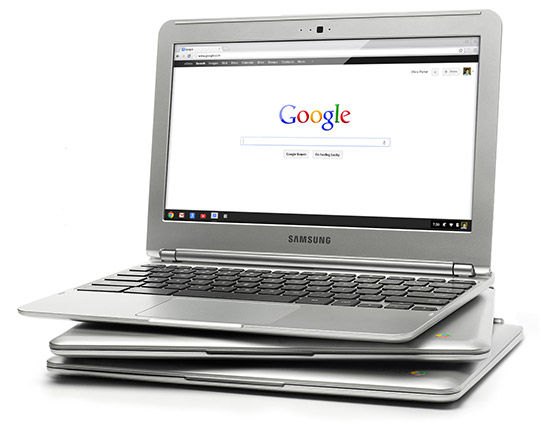
I've been using a Chromebook since getting a CR-48 from Google a few years ago, and I love it. I am currently using a Samsung Chromebook, and our district is deploying over 5000 of them.

The Chromebooks, and Chrome OS in general, are fast and work great, but every once in a while they can bog down when doing serious multitasking. Many only have 2GB of RAM and do not offer the ability to add more RAM physically. I found out about a great way to increase your memory by using zRam which uses swap space on your hard disk/SSD. Kevin C. Tofel shared this great resource that is very easy to do.

Here are the simple steps:

  1. Open up a terminal tab with the CTRL + ALT + T keys.
  2. Type “swap enable” (without the quotes).
  3. Restart your Chromebook.
It's that easy. I did it and my Chromebook runs much smoother and faster and rarely bogs down, even with 15+ tabs open. 

Disabling it is easy too. Do all of the steps but type "disable" instead of "enable".

Give it a try and see how it improves your Chromebook's performance. 


Related:


Google Keep, Google's Note Taking App, get's some improvements and new features.


Google’s Keep, Google's easy to use note taking app, has some new features, improved features and bug fixes. Here is the list of new features from the Google Play Store.

• Create notes, lists, and audio notes
• Add photos to any note
• Hide and show checkboxes to turn notes into checkable lists
• View and create notes from homescreen and lockscreen widgets (lockscreen widgets require Android 4.2+)
• Selectable color for notes
• Safely sync notes to Google Drive and other devices
• Notes can also be used from http://drive.google.com/keep


I use Evernote for most things, but also use Keep for quick notes on the go, along with voice notes, and then I can share the notes to other apps, or just access them as needed.


Google Keep note taking service launched


Google Keep

Google has just launched Keep, a note taking service, that is free. It is a cool note taking system, that allows you to quickly jot down notes, checklists, transcribe a voice memo, search your notes, and more.

Your notes are saved in Google Drive and synced to all of your devices. There is an Android app for Android 4.0+ and you can access, edit and create new notes on the web at http://drive.google.com/keep and Google will be adding these functions directly in Google Drive shortly.

It has a nice layout, using boxes instead of text and you can rearrange the notes based on your needs and priorities and you can color code your notes.

Knowing that I am a huge user of Evernote, many people have asked me about Google Keep. I will be using both. Evernote has many more features that I use and I have over 4900 notes in Evernote. However, I find Evernote a little more cumbersome for quick note taking on my phone or tablet. So, I'm going to be using Keep for quick notes on the go, along with voice notes, and then I can share the notes to other apps, or just access them as needed. I don't feel like I have to choose one note taking app, but rather that I can use two or more based on my needs.

Here's a nice video overview of Google Keep:


Evernote Resources